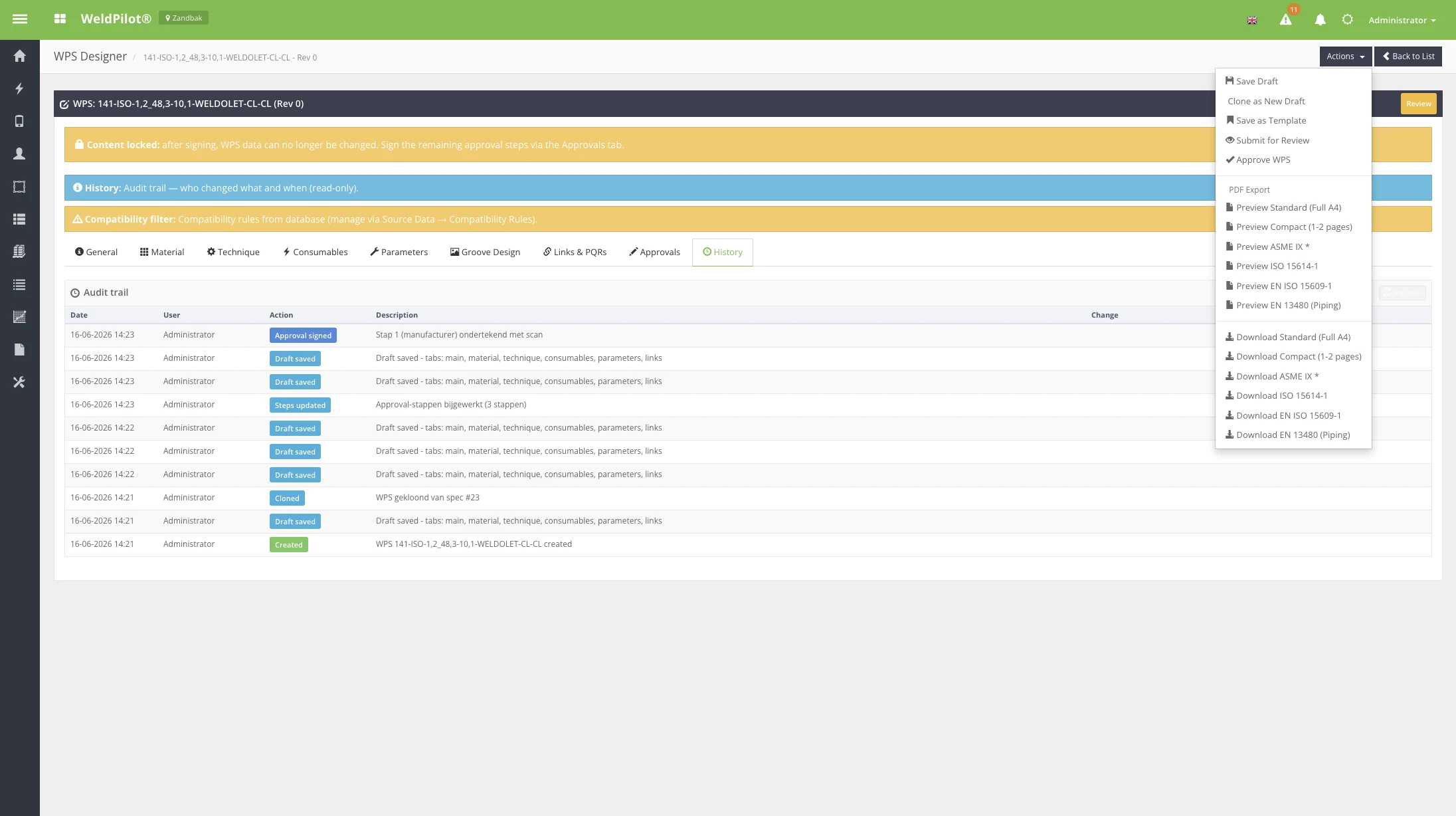
Draft → (Submit for Review) → Review → (All steps signed) → Final Approve → Approved
Approvals tab during review
Review history with audit
entries
Each approval step shows:
Column
Description
Step
Order and role (Manufacturer, Customer, Third party)
Assigned to
User or external signatory
Status
Pending / Approved / Rejected
Actions
Sign digitally, Send invitation, Reject
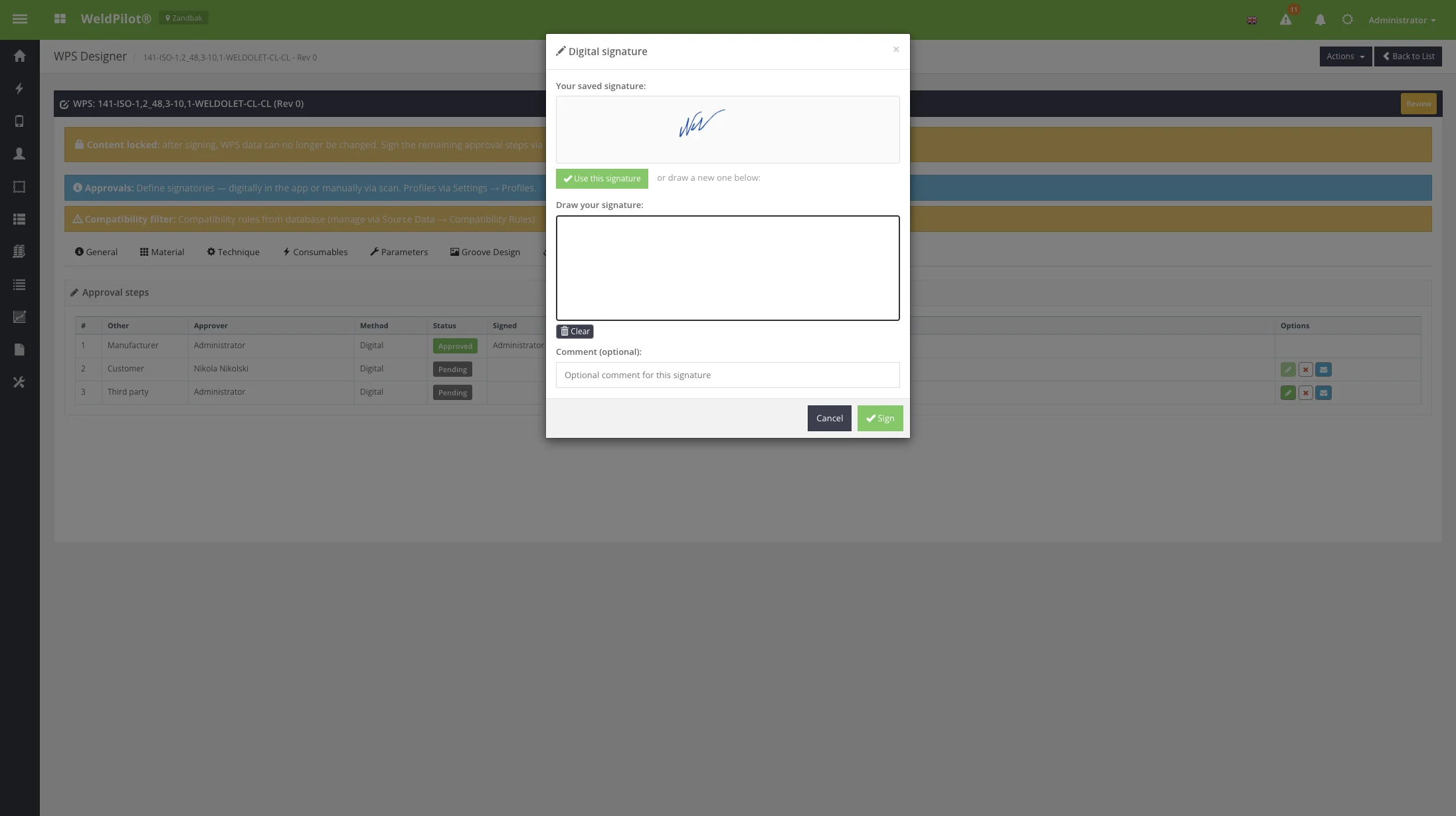
Digital Signature Modal
Screen Overview
Purpose: Capture a legally traceable digital
signature for an approval step. When to use: Assigned signatory clicks Sign
digitally on the Approvals tab.
Screenshot
Digital signature modal
Field Reference
Field
Description
Required
Saved signature
Pre-stored signature from user profile
No
Draw signature
Canvas for new signature
Yes (if not using saved)
Comment
Optional signing comment
No
Action Buttons
Button
Description
Use this signature
Apply stored signature from profile
Clear
Erase drawn signature
Cancel
Close without signing
Sign
Submit signature for this step
User Instructions —
Sign an approval step
Open a WPS in Review status.
Go to the Approvals tab.
Click Sign digitally on your assigned step.
Use Use this signature or draw on the canvas.
Add an optional comment.
Click Sign.
When all steps are signed, use Actions → Final Approve WPS.
Changing WPS content after a signature invalidates signatures and
requires re-signing.