Purpose: Central registry of all WPS specifications in WeldPilot. When to use: Daily starting point — find WPS, check status, open editor, create copies, manage drafts. Related workflows: Create WPS, filter by status, use master template for project, delete drafts.
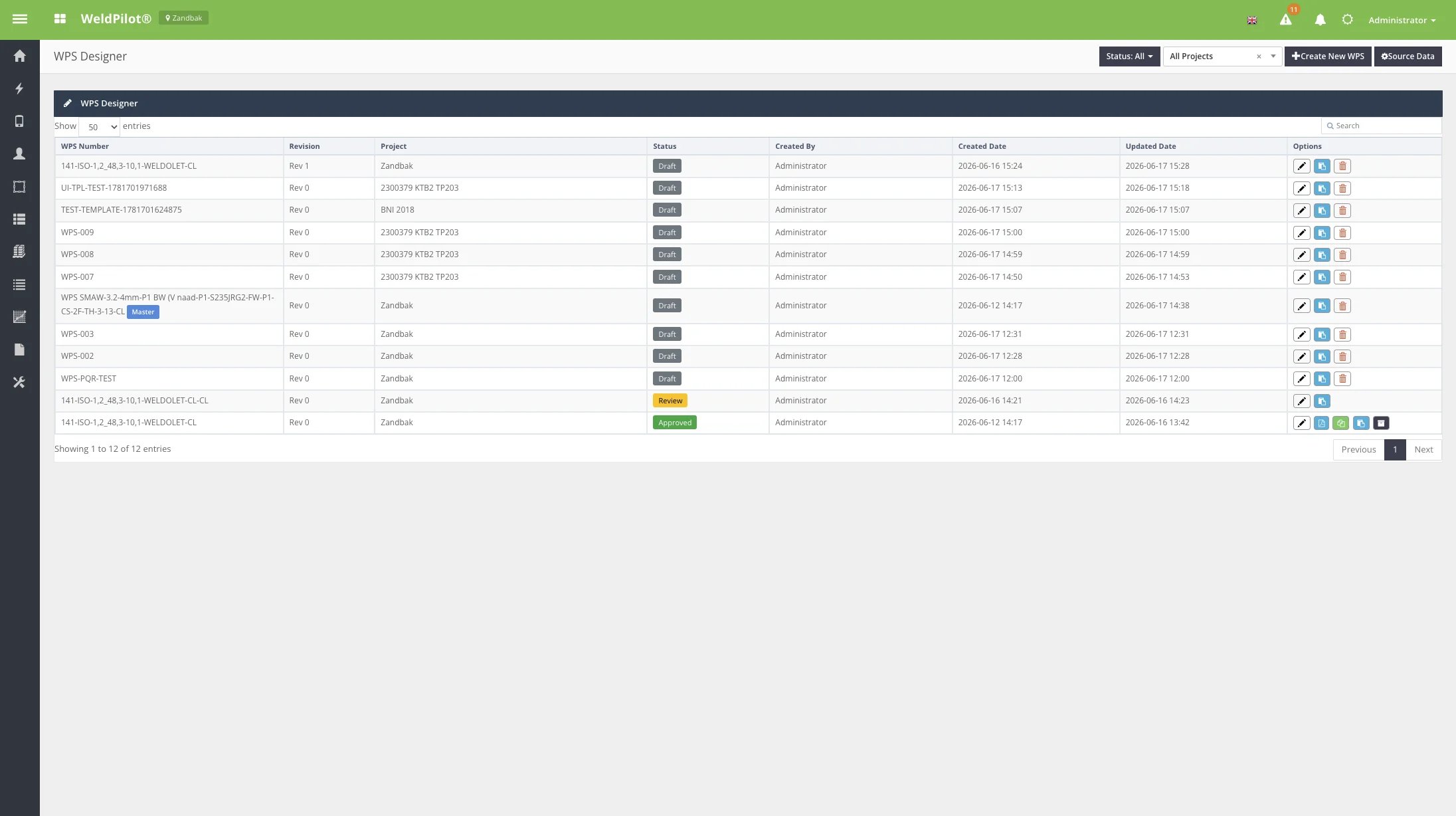
Screenshot
WPS list overview
Columns
Column
Description
WPS Number
Unique identifier; master templates show a Master badge
Revision
Revision number (Rev 0, Rev 1, …)
Project
Project site the WPS belongs to
Status
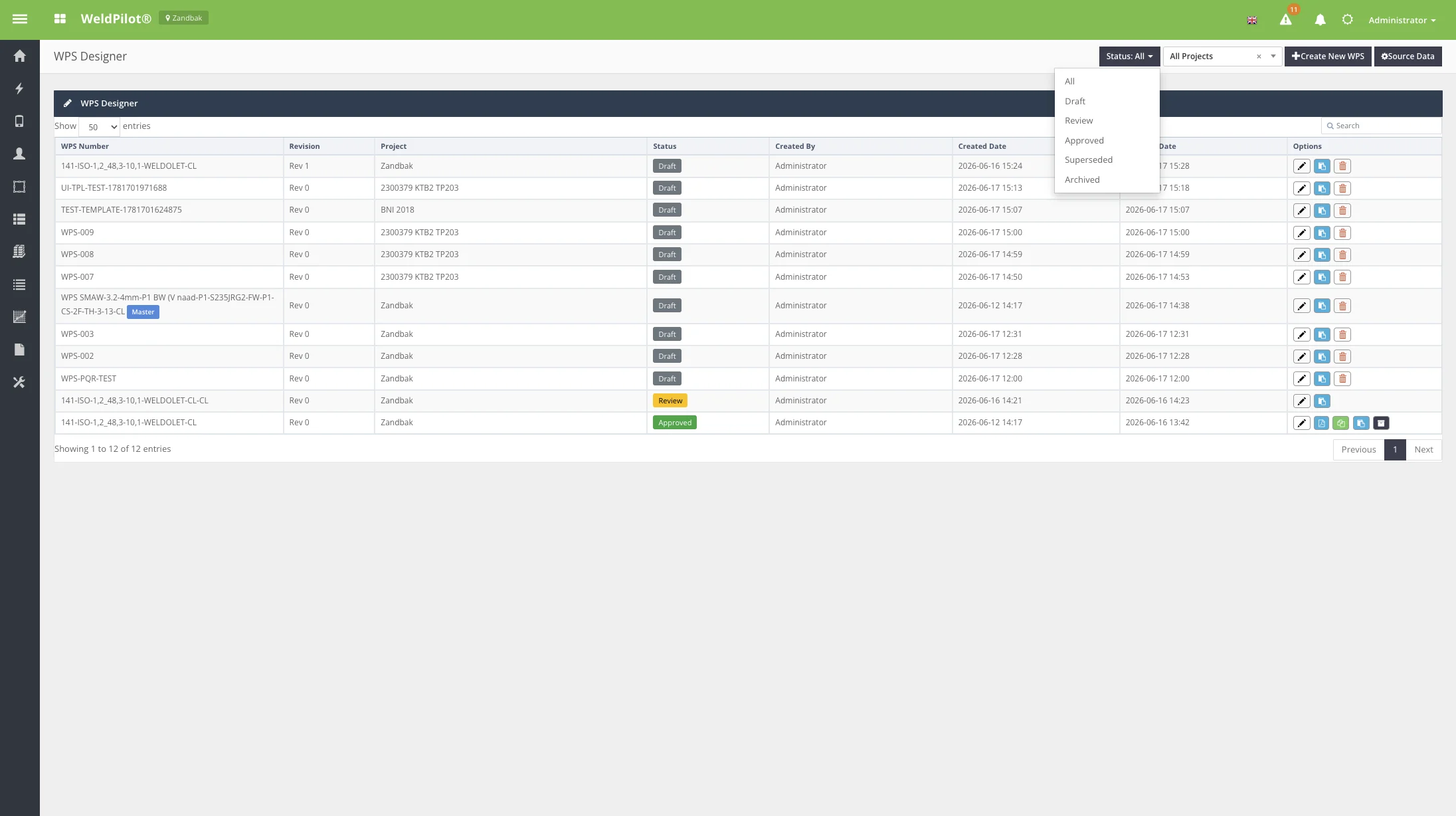
Draft, Review, Approved, Superseded, or Archived
Created By / Date
Original author and timestamp
Updated Date
Last modification
Options
Action buttons (see below)
Status badges
Status
Colour
Meaning
Draft
Grey
Editable; not yet submitted
Review
Yellow
Submitted; awaiting signatures / approval
Approved
Green
Final; read-only; official PDF available
Superseded
—
Replaced by a newer revision
Archived
—
Closed; no longer active
Status filter dropdown
Action Buttons (Options column)
Button
Visible when
Description
Edit (pencil)
Always (or View if read-only)
Open WPS editor
View PDF
Approved + Export right
Open official PDF in new tab
Create Revision
Approved + Insert
Start new revision workflow
Clone as Draft
Not archived + Insert
Duplicate as new draft
Use for project (share icon)
Approved master template + Insert
Create project copy (see §4.4)
Archive
Approved + Edit
Mark WPS as archived
Delete (trash)
Draft + Delete
Permanently remove draft
Top Bar Actions
Button
Description
Create New WPS
Opens creation modal
Source Data
Toggles embedded source data panel
Status filter
Filter list by lifecycle status
Project filter
Filter by project site
Search
Quick search across table columns
User Instructions — Find a WPS
Open WPS Designer.
Set Status and Project filters as needed.
Type in Search to narrow results.
Click Edit (or the WPS number link) to open the editor.