
Ga naar de hoofdinhoud
User Instructions — First
Getting Started
Accessing the Module
- Log in to WeldPilot.
- Open the left navigation menu.
- Expand Weld data.
- Click WPS Designer.
Note: WPS Designer must be enabled in System
settings (Enable WPS Designer). If the menu item is
greyed out, contact your administrator.
Navigation Overview
| Area | Location | Purpose |
|---|---|---|
| WPS list | Main page | Overview of all WPS records, filters, create button |
| Source Data | Button on list page | Embedded panel for master data |
| WPS Editor | Click Edit/View on a row | Multi-tab specification editor |
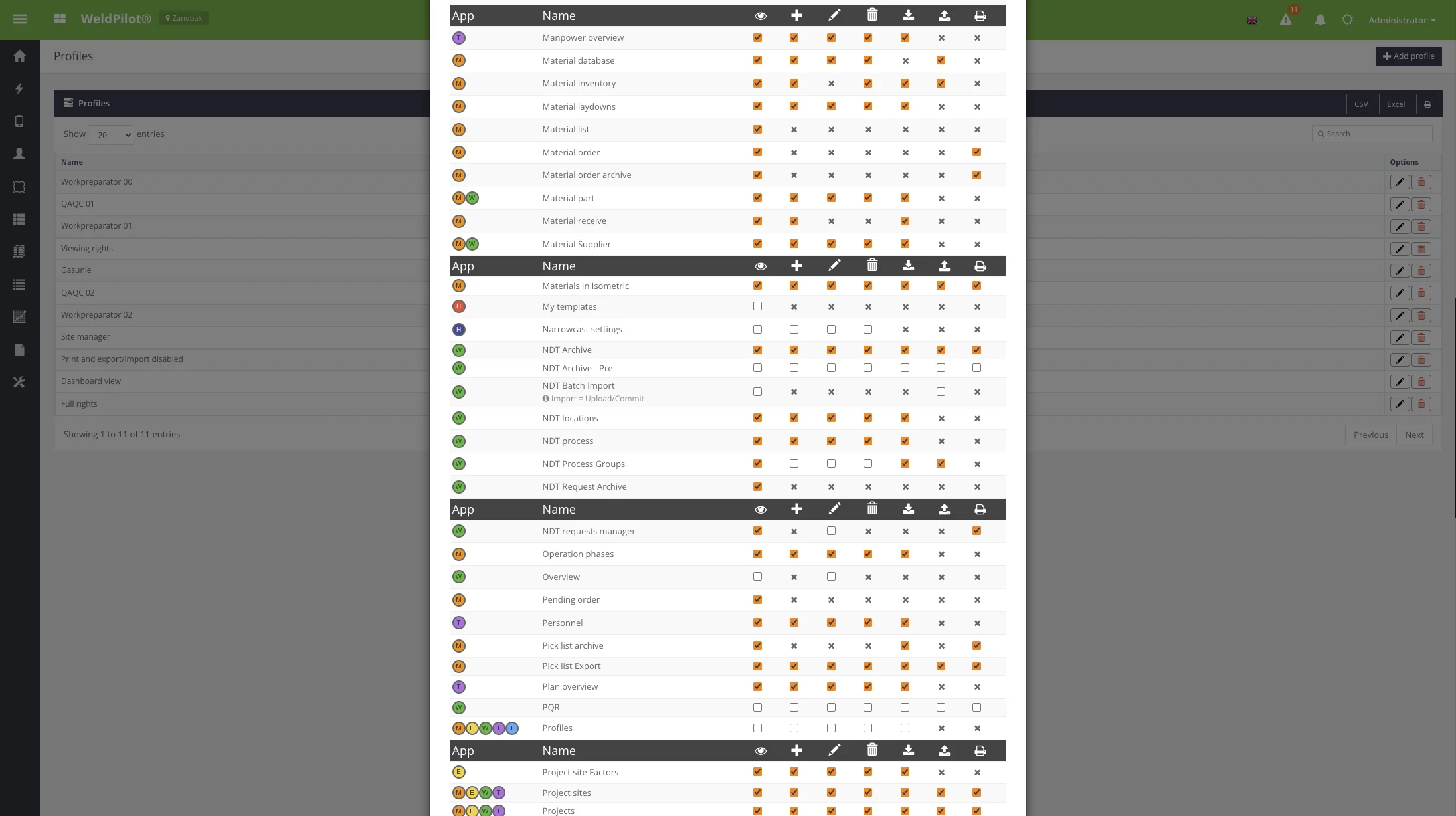
| Profiles | System → Profiles | Permission configuration |
Permissions
WPS Designer uses six permission flags on the user profile:
| Flag | Letter | Allows |
|---|---|---|
| Show | s | Open WPS Designer and view records |
| Insert | i | Create WPS, clone, revision, use master for project |
| Edit | e | Edit drafts, submit for review, archive |
| Delete | d | Delete draft WPS only |
| Approve | m | Submit for review, sign, final approve |
| Export | x | Preview/download PDF, view official PDF |
Administrators (role 1) have all rights automatically.
User Instructions — First
login
- Confirm you can see Weld data → WPS Designer in the
menu. - Open the list and verify your project appears in the
Project filter. - If you need to create WPS, confirm Insert is
enabled on your profile. - If you approve WPS, confirm Approve and
Export are enabled.
